

If you’ve spent any real time in the Source Filmmaker community, you’ve bumped into the term “SFM compile” — usually while staring at a wall of red error text after trying to load a model you downloaded or built yourself. It’s one of those phrases that gets thrown around constantly in tutorials and Discord servers, but rarely gets explained from the ground up. Most guides assume you already understand why compiling exists before they show you how to do it, which leaves a lot of beginners stuck guessing at commands they don’t actually understand.
This guide starts from zero. We’ll cover what compiling actually means, how it fits into the broader SFM workflow, the tools involved, the QC file (the real heart of the process), the step-by-step compile procedure, the errors you’re almost guaranteed to hit, and how to build good habits so your next ten compiles go faster than your first one did.
What “SFM Compile” Actually Means
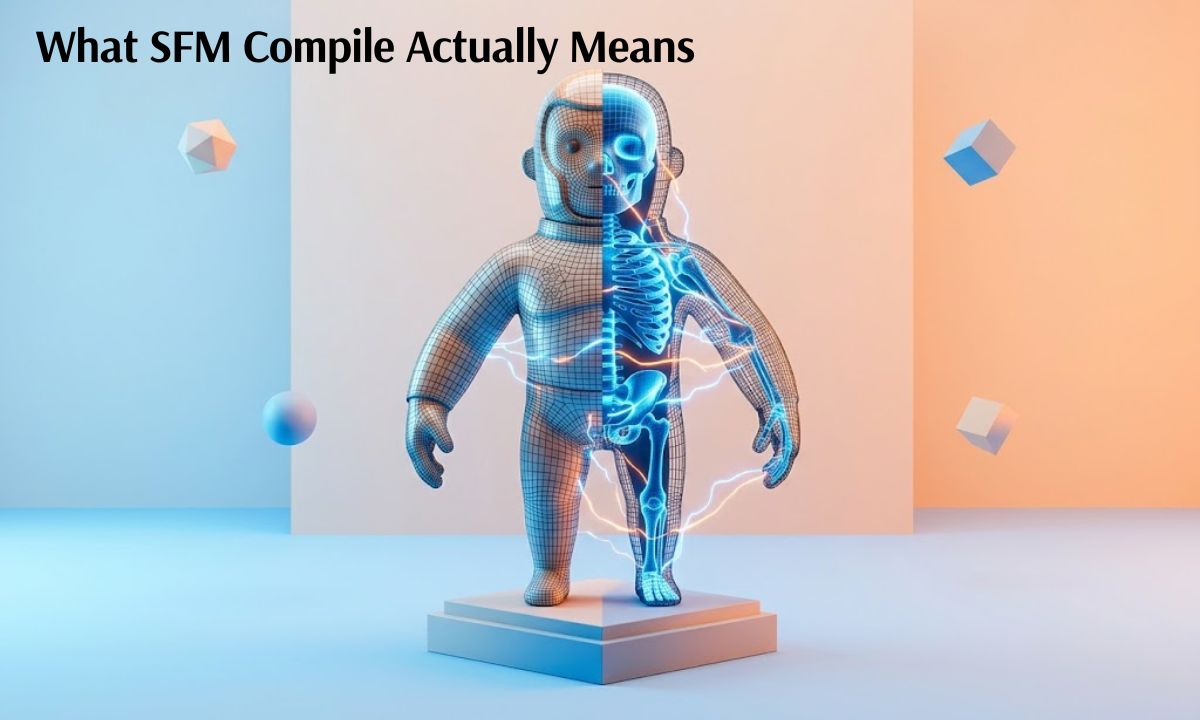
At its core, an SFM compile is the process of converting a raw 3D model — the kind you build in Blender, Maya, or 3ds Max — into a format that Source Filmmaker and the Source engine can actually read.
This distinction trips up a lot of newcomers because it seems like it shouldn’t be necessary. You spent hours sculpting a mesh, painting textures, and rigging a skeleton in your modeling software, and it looks great in that program’s viewport. But SFM has no idea what a .blend file or an .fbx file is. The Source engine only understands one binary format for models: MDL, short for “model.” That’s the same file format used across every Source-based product — Half-Life 2, Garry’s Mod, and SFM included.
So “compiling” is the act of taking your raw mesh, its skeleton, and its textures, and packaging all of it into a working .mdl file. Skip this step, and as far as SFM is concerned, your model doesn’t exist — no matter how polished it looks in your 3D software.
A few core pieces make up this process, and understanding what each one does will make everything downstream much easier to follow:
| Term | What It Means |
| SMD / DMX | The raw mesh and animation data exported out of your 3D software |
| QC file | A plain-text file of instructions telling the compiler how to assemble the model |
| StudioMDL | The actual compiler program that reads the QC file and outputs the model |
| MDL | The finished, compiled file that SFM loads directly |
A useful analogy: your raw mesh and textures are the ingredients, the QC file is the recipe, StudioMDL is the oven, and the MDL file is what comes out the other end. Skip the oven, and all you’ve got is a bowl of unusable ingredients — no matter how good they are individually.
Where Compiling Fits Into the SFM Pipeline
Compiling isn’t an isolated task — it’s one stage in a longer chain of steps, and knowing where it sits helps you figure out where things actually went wrong when a compile fails.
The general pipeline looks like this:
- Modeling — building the mesh in Blender, Maya, or similar software.
- UV mapping and texturing — wrapping 2D textures around the 3D mesh.
- Rigging — adding a skeleton (bones) so the model can be posed.
- Exporting — converting the model into SMD or DMX files, usually via a plugin like Blender Source Tools.
- Writing the QC file — creating the instructions the compiler will follow.
- Compiling — running StudioMDL (directly, or through a front-end like Crowbar) to actually produce the MDL.
- Importing into SFM — loading the finished model into your project.
Notice that compiling happens near the very end. That matters, because a lot of compile errors aren’t really compile problems at all — they’re symptoms of something that went wrong earlier. A mistyped bone name during rigging, or a texture saved in the wrong format during export, will surface as a compile error even though the actual mistake happened several steps back.
The takeaway: compiling doesn’t create your model, it packages what you already built. Garbage in, garbage out. If something upstream is broken, the compile will simply report it rather than fix it.
The Software You Actually Need
The good news is that none of the tools involved in SFM compiling cost money. Here’s what each one does and where it fits.
Source Filmmaker (Free) is the actual animation and rendering tool. It’s free on Steam and ships with sample content, so you can start posing and animating immediately without touching the compile process at all. You only need to compile something once you want to bring in a custom model that isn’t already part of SFM’s built-in library.
3D modeling software is where you build the model in the first place:
- Blender — free, open-source, and the clear favorite in the SFM community, largely because of its free and well-maintained Source export plugin.
- Autodesk Maya — an industry-standard tool used in professional studios, though it comes with a significant subscription cost.
- 3ds Max — another professional-grade option, more commonly seen in commercial game development than in hobbyist SFM projects.
Compiling tools turn your exported files into a working model:
- StudioMDL — the actual compiler, bundled with the Source SDK. This is the program doing the real work behind every compile, whether or not you ever interact with it directly.
- Crowbar — a free, community-built graphical front-end for StudioMDL. Instead of typing compile commands manually, you load your QC file and click a button. This is what the vast majority of the SFM community uses today.
- GUIStudioMDL — an older graphical alternative to Crowbar, still around but largely superseded.
- Blender Source Tools — the free Blender add-on that exports your model as SMD or DMX files, ready for the compiler to consume.
Here’s the full toolchain at a glance:
| Tool | Purpose | Cost |
| Source Filmmaker | Posing, animating, rendering | Free |
| Blender | Building and rigging models | Free |
| Blender Source Tools | Exporting models to SMD/DMX | Free |
| Crowbar | Running the compile process | Free |
| StudioMDL | The actual compiler engine | Free (Source SDK) |
You don’t need a paid license or expensive software to get started — you need patience and a willingness to actually read the error messages Crowbar hands you, rather than skipping past them.
Understanding the QC File
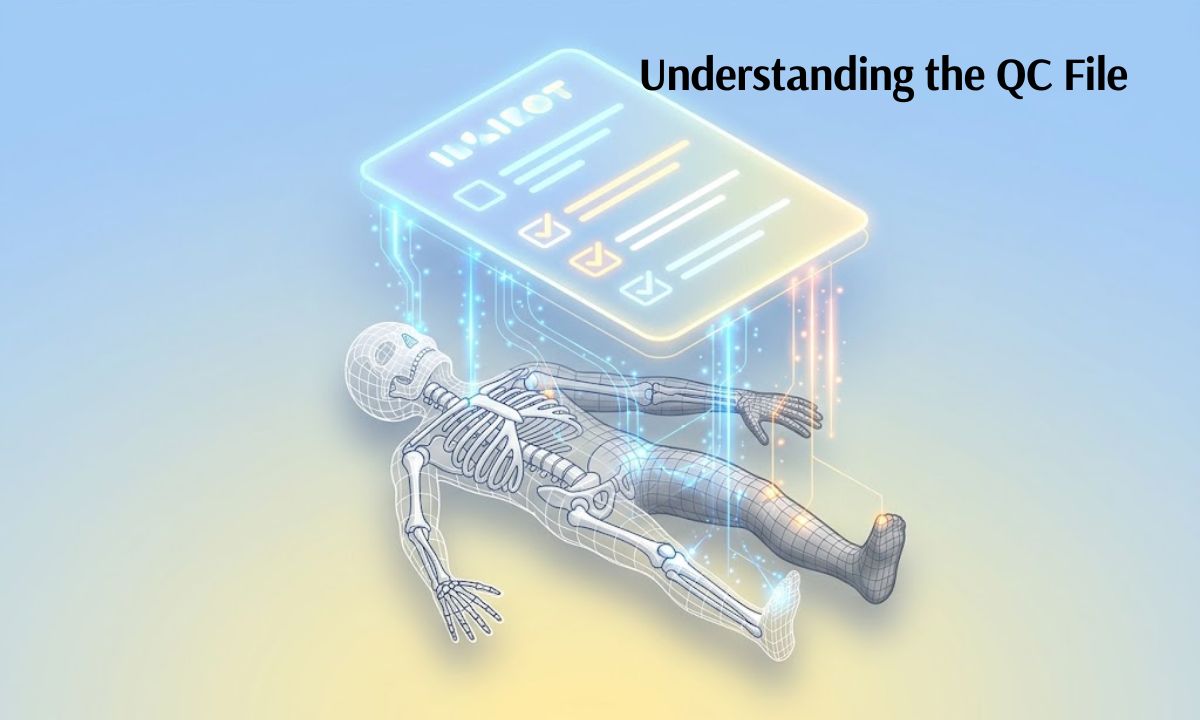
If there’s one file worth understanding deeply, it’s the QC file. This is the actual instruction manual for your compile, and the vast majority of compile errors trace directly back to something written incorrectly here.
A QC file is nothing more than plain text — you can open and edit it in Notepad, no special software required. It tells StudioMDL things like:
- Where your reference mesh lives
- What to name the final compiled model
- Which animation sequences to include
- How the model should collide with the world
- Where its textures are stored
Key QC Commands
A handful of commands cover the vast majority of what you’ll need:
- $modelname — sets the name and output path of your finished model.
- $body — points to the SMD file containing your actual mesh geometry.
- $cdmaterials — tells the compiler which folder your textures live in.
- $sequence — defines an animation sequence and the SMD file it pulls from.
- $collisionmodel — sets up the physics/collision shape, typically a simplified version of your visual mesh.
- $surfaceprop — defines the surface material (wood, metal, flesh, etc.), which affects both sound effects and physics behavior.
A Simple Annotated Example
$modelname “myprops/wooden_crate.mdl”
$body mybody “wooden_crate_reference.smd”
$cdmaterials “models/myprops/”
$surfaceprop “wood”
$sequence idle “wooden_crate_reference.smd”
$collisionmodel “wooden_crate_physics.smd”
Reading line by line: this names the finished model, points to the mesh file, tells the compiler where the textures are, sets the surface type to wood, defines a default idle animation, and links a collision mesh for physics interactions. That’s genuinely all there is to it — no programming knowledge required. Once you understand what each line does, a QC file stops looking like gibberish and starts reading like a checklist.
Step-by-Step: How to Compile a Model for SFM
With the concepts out of the way, here’s the actual process from start to finish.
- Prepare your model and textures. Make sure your mesh is finished, your UV maps are clean, and your textures are saved in a Source-compatible format (typically VTF, converted from PNG or TGA). Double-check file names now — inconsistent naming is one of the single most common causes of failed compiles.
- Write or edit your QC file. Using the commands above, build a QC file that matches your actual folder structure exactly. Even one mistyped folder name will break the compile.
- Run the compiler. Open Crowbar, load your QC file, and hit compile. Behind the scenes, Crowbar is simply calling StudioMDL and feeding it your instructions.
- Read the output log carefully. A successful compile produces a confirmation message and a new .mdl file in your output folder. A failed compile produces an error log — don’t skip past this. It almost always tells you exactly what went wrong, in plain terms.
- Fix errors and recompile. This is completely normal. Very few compiles succeed on the first attempt, especially for beginners. Fix one issue, recompile, and repeat until the log comes back clean.
- Test the model inside SFM. Load Source Filmmaker, import the new model, and confirm it appears correctly, holds its textures properly, and poses the way you’d expect.
A good illustration of how these problems usually play out: one modder on the Facepunch forums described spending four hours troubleshooting a failed character compile, only to discover the entire issue was a single stray space in a folder name. Once the space was removed and the path matched exactly in the QC file, the compile succeeded in under a minute. Compile problems are almost always small and specific — not mysterious or complicated.
Common Compile Errors and How to Fix Them

Every SFM creator runs into these sooner or later:
- Missing or mismatched texture paths — the compiler can’t find your textures because the $cdmaterials path doesn’t match your actual folder layout. Fix: double-check every folder name for exact spelling and capitalization.
- Bad bone hierarchy — often surfaces as ERROR: unknown bone when an animation references a bone that doesn’t exist in your skeleton. Fix: finalize your rig before exporting any animations.
- Incorrect file paths in the QC — a classic typo issue. Fix: open the QC in a text editor and compare every path against your real folder structure, line by line.
- “ERROR: could not find” messages — this generic error almost always means a referenced file (SMD, VTF, or VMT) doesn’t exist where the QC claims it should. Fix: verify the file actually exists at that exact location.
- Purple-and-black checkerboard textures — this isn’t technically a compile failure. It means the model compiled successfully, but its texture files (VMT/VTF) weren’t generated or placed correctly.
Best Practices for Clean, Reliable Compiles
A little organization up front saves hours of frustration later. Experienced SFM creators consistently recommend:
- Organize your working folder before you start. Keep separate subfolders for models, materials, and QC files, mirroring the structure Source expects.
- Use consistent naming conventions. Avoid spaces and special characters entirely — stick to lowercase letters, numbers, and underscores.
- Match your compiler version to your SFM install. An outdated Crowbar or StudioMDL build can behave unpredictably with newer Source content.
- Keep backups of your raw SMD and DMX files. If a compile goes badly wrong, you don’t want to redo your rigging from scratch.
- Compile early and often. Don’t wait until a model feels “finished” to test your first compile. Compiling a rough version early catches structural problems before you’ve sunk hours into fine detail.
Where to Get Models, Assets, and Ports
Not everyone wants to build a model from scratch, and that’s completely reasonable. There are generally three paths:
- Steam Workshop content — thousands of pre-made, already-compiled models are available for free and load directly into SFM with no compiling required on your end.
- Custom-compiled models — models you (or someone else) build and compile from scratch, giving full creative control over the result.
- Ported models — models extracted from other games and adapted to run in Source. This is common in the community, but it occupies a legal gray area. Porting content from a commercial game without permission can violate that game’s terms of service and copyright, even though the practice is widespread. If you’re serious about publishing your work, it’s worth sticking to original models or properly licensed assets.
For beginners, Workshop content is the easiest way to start posing and animating without touching the compile process at all — save your first custom compile attempts for once you’re comfortable with the basics.
Rigging and Animation Basics Once Your Model Is Compiled
Once a compile succeeds, the real fun begins: posing and animating. A couple of things here connect directly back to how the model was compiled in the first place.
Bones form the skeleton structure that lets you pose your model. A clean, logical bone hierarchy from a well-planned rig makes posing feel intuitive. A messy rig makes for frustrating animation work down the line.
Flexes control facial expressions and subtle deformations. These need to be properly set up via $flexcontroller and related QC commands before compiling — otherwise your character simply won’t have facial animation options available inside SFM at all.
If a model poses stiffly, or its bones move in strange, disconnected ways, that’s almost always a sign of a rigging issue from before the compile — not something you can easily patch inside SFM itself.
Troubleshooting: When SFM Won’t Load Your Compiled Model
Sometimes the compile finishes cleanly, but SFM still gives you trouble. Here’s how to diagnose the usual suspects:
| Symptom | Likely Cause | Fix |
| Model shows as an error cube | MDL file path doesn’t match what SFM expects | Verify the model is placed in the correct models folder |
| Missing textures in-viewport | VMT/VTF files weren’t generated or placed correctly | Re-check the $cdmaterials path and material folder |
| Model imports but won’t animate | Bone or flex setup issue during rigging | Revisit the rig before recompiling |
| Model appears distorted | Incorrect scale during export | Match export scale settings to Source’s expected units |
Most of these trace back to path mismatches. A consistent, tidy folder structure from the very start avoids the majority of these headaches entirely.
A Beginner-Friendly Roadmap
If all of this feels like a lot at once, here’s the realistic starting point most experienced creators recommend — don’t start with a fully rigged character. Build up in stages:
- Compile a simple static prop first — something with no animation and no complex rig, like a crate or a rock. This teaches you the QC file basics without the added complexity of bones and sequences.
- Move to a basic rigged object — something with just one or two moving parts, like a door or a simple mechanical piece.
- Try a simple character rig — once you’re comfortable with bones, attempt a basic humanoid or creature model.
- Add facial flexes and full animation support — the most advanced stage, and it’s fine to take your time getting here.
This staged approach means you learn the compile process in manageable pieces, rather than getting overwhelmed trying to compile a fully animated character on your very first attempt.
Conclusion
SFM compiling isn’t some mysterious, unreachable skill — it’s a specific, learnable process with a clear structure: build your model, export it, write a QC file, run it through the compiler, and troubleshoot whatever comes back. Every experienced SFM creator went through the exact same frustrating first compiles, the same typo-driven errors, and the same purple-and-black checkerboard textures you might be staring at right now.
The key is patience and organization. Keep your folders clean, read your QC files line by line, and compile early and often rather than waiting until everything feels perfect. Once the fundamentals click, you’ll find the whole process takes a fraction of the time it did on your first attempt.
FAQs
What is a QC file used for in SFM compiling?
A QC file is a plain-text instruction file that tells the StudioMDL compiler how to build your model. It defines file paths, animations, collision models, and material locations — essentially acting as the recipe the compiler follows to produce a working MDL file.
Why does my compiled model show up as a purple-and-black checkerboard?
This happens when the model compiles successfully, but its texture files (VMT and VTF) either weren’t generated correctly or aren’t located where the model expects them. Double-check your $cdmaterials path and confirm the material files actually exist in that folder.
Can I compile models without Crowbar?
Yes. Crowbar is just a graphical front-end for StudioMDL, the actual compiler. You can run StudioMDL directly from the command line if you’re comfortable typing out compile commands manually, though most people find Crowbar faster and easier for everyday use.
Is Source Filmmaker still supported by Valve?
Source Filmmaker remains available for free through Steam and is still functional, though Valve has shifted most of its active development attention elsewhere in recent years. The community continues to actively support it with tools, tutorials, and new content.
What’s the difference between compiling for SFM and compiling for Garry’s Mod?
The core compile process is nearly identical, since both run on the Source engine and use the same StudioMDL compiler and QC file structure. The main differences show up in folder conventions and how each program expects assets to be organized, rather than in the fundamental compiling steps themselves.
Do I need to know coding to write a QC file?
No. A QC file uses simple, readable commands rather than actual programming syntax. If you can follow a basic checklist and pay close attention to file paths and spelling, you can learn to write and edit QC files without any coding background.

I am Olivia, the passionate writer and creator behind MeaningZime, where I share meaningful insights, inspiring ideas, and engaging content about names, quotes, emotions, and life-related topics. I love exploring the deeper meanings hidden in words and turning them into easy-to-understand articles that inform and inspire readers around the world. Through MeaningZime.com, my goal is to create a place where curiosity meets knowledge and every visitor finds something valuable, relatable, and uplifting.
